
Creating a print-ready file with Canva
New post
26 August 2024
Hi! It’s Marion, I’m a graphic designer and YES I use CANVA, I’m going to give you a few tips to create your file ready to print !
1. Create an account or log in
- Create an account: If you don’t yet have a Canva account, sign up at Canva.com.
- Log in: If you already have an account, log in.
2. Choose a template or create a custom design
- Choose a template: Canva offers many ready-made templates for different types of projects (flyers, business cards, posters, etc.). Choose the one that suits your needs.
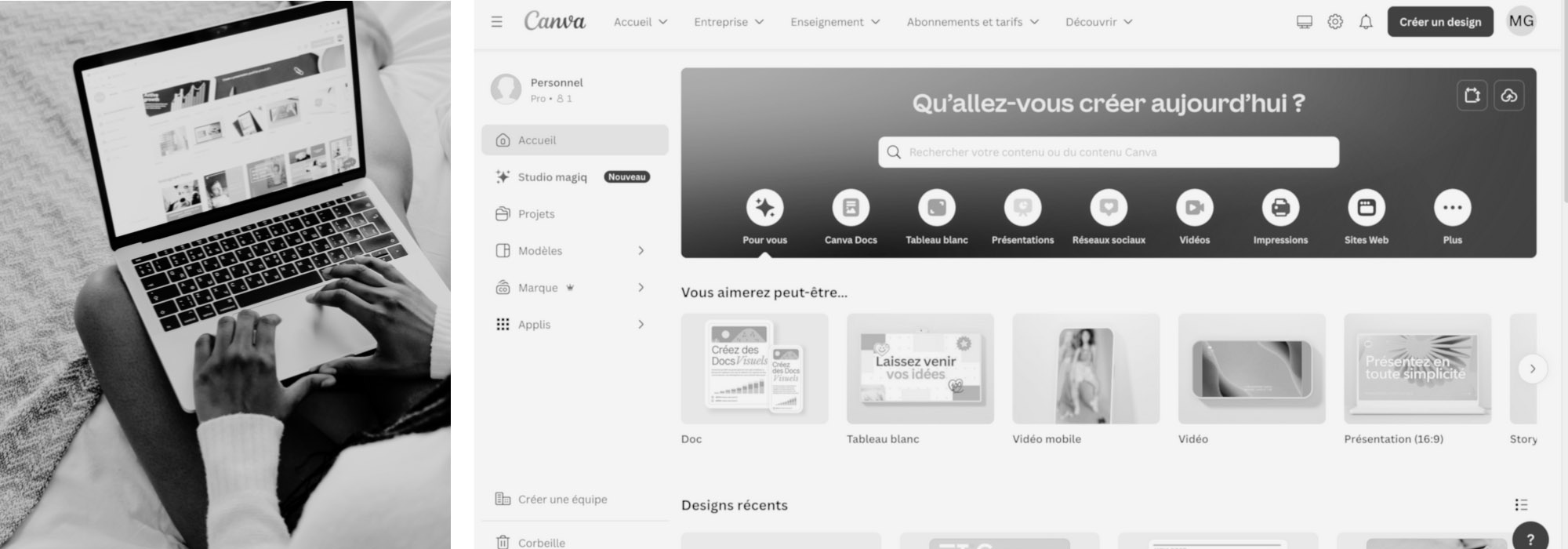
- Create a custom design: You can also start from a blank page by clicking ‘Create a design’ and selecting the desired dimensions.
3. Set the dimensions and margins for printing
- Custom dimensions: Make sure your design has the right dimensions for what you are going to print. You can enter custom dimensions in pixels, inches, millimetres or centimetres.
- Bleed: Add bleed if your design extends beyond the format. To do this, enable the option in “ file, settings, show bleed ”.
4. Create and customise your design
- Add elements: Use Canva’s tools to add text, images, shapes and other graphic elements.
- Customise text and images: Change the fonts, colours, and adjust the images so they match your vision.
5. Check the quality and resolution of images
- Use high-resolution images: Make sure all the images used have a sufficient resolution for printing (at least 300 DPI).
6. Prepare the file for printing
- Download as a print PDF: Canva offers several download options. For high-quality printing, choose ‘PDF Print’ when downloading. This option includes bleed and crop marks if you have added them.
- Check the download settings: Before downloading, check the settings to make sure everything is correct (dimensions, bleed, crop marks).
7. Download the file
- Click the ‘Download’ button and select ‘PDF Print’. Don’t forget to tick ‘crop marks and bleed’. Your file will be downloaded in high quality, ready for printing.
A few extra little tips ;)
- Preview: Before downloading, use the preview to see what your design will look like once printed.
- Save often: Canva saves your work automatically, but it’s always good to check that your changes have been saved.
- Collaborate: You can invite others to collaborate on your design if you work as a team.
By following these steps, you’ll be able to create a print-ready file with Canva, ensuring that your design is high-quality and meets your expectations.